050 lesson: drive the robot on blocks
Tell each motor which way it is mounted. Then run tank drive on the robot, up on blocks, and check that every wheel turns the way its stick says.
Before you start.
L040 is done, so
mytryholdsL040TankOpMode.A robot, a Driver Station with a gamepad, and a USB cable from the laptop to the Control Hub.
Two blocks to rest the robot on, so no wheel touches the ground, and about 2 m of clear floor for the last step.
the steps
L050S010: copy the starter into mytry
Copy. In lessons, click L050BlocksOpMode once and copy it. Click mytry once and paste.
In the Copy Class box, click OK. If Android Studio asks whether to add the file to Git,
click Add.
Check.
mytryholdsL050BlocksOpMode, and the new file is open.
L050S020: switch your copy on
Change. Delete the line @Disabled, under the comment that names this step.
Check.
Under the step’s comment, the next line reads
// 'public' so the robot can run this OpMode. 'public' allows access from any code.
L050S030: label the robot
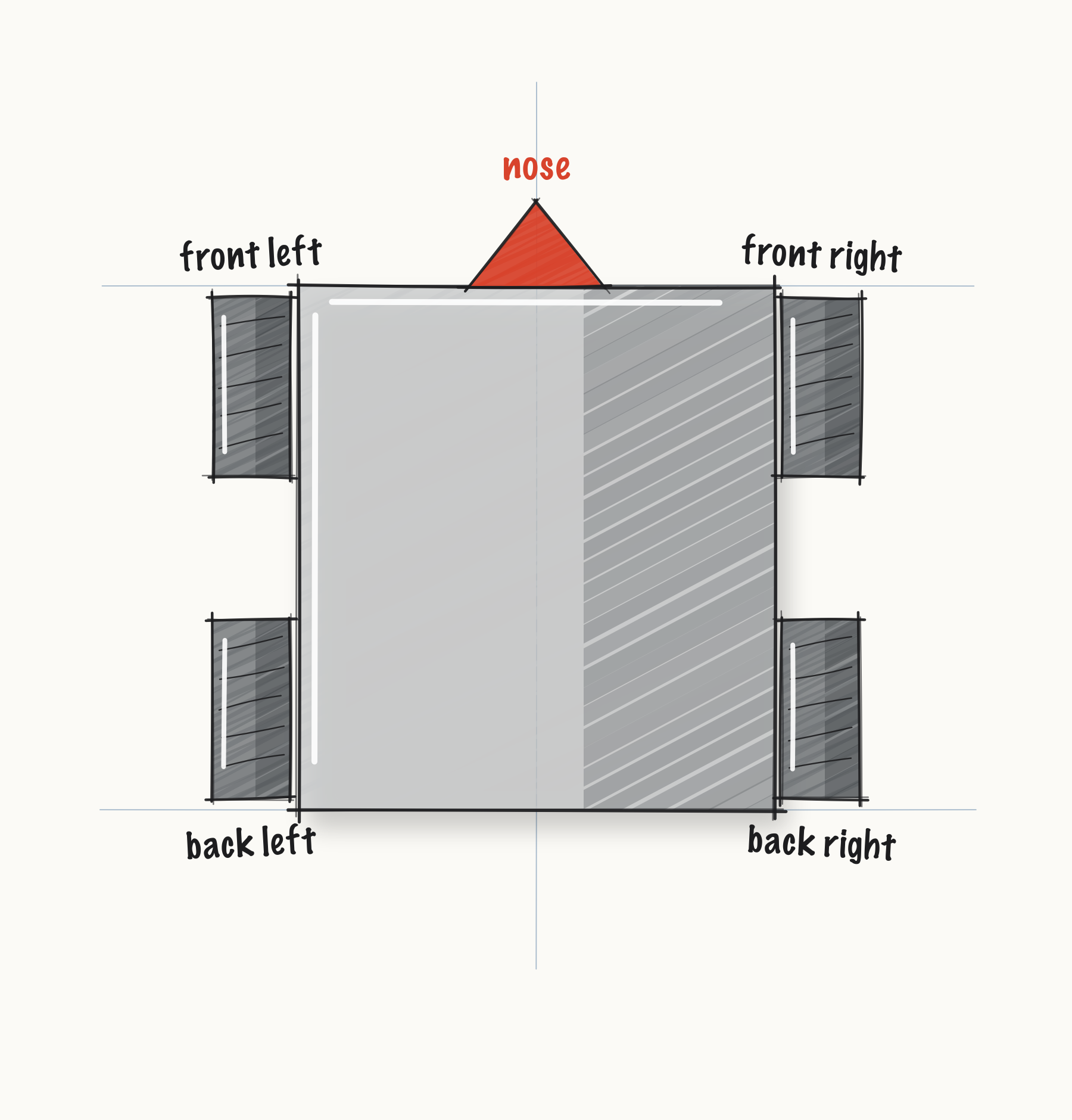
Label. Put a strip of tape on the robot’s front, and mark it FRONT. Mark the left side LEFT and the right side RIGHT, as the robot sees them when it drives forward.
Check.
Stand behind the robot, facing the way FRONT faces. LEFT is on your left.
L050S040: tell each motor which way it is mounted
The two sides of the robot face opposite ways. So the same power turns the left motors one way and the right motors the other. In L040 the simulator did not care. A real robot does.
The robot’s own file in the pedro folder already says which way each motor is mounted, and
hardware.mecanumConfig holds what it says.
Change. Scroll up to init() and find the comment that names this step. Type
hardware.frontLeft.setD, and pick setDirection. Inside the brackets, type
hardware.mecanumConfig.frontLeftD. The list offers frontLeftDirection.get(), marked
Direction. Pick it.

Finish the line, and do the same for the other three motors:
        // When on L050S040, see
        // https://msb-stitt.github.io/ftc31459-26-27-biobuzz/guide/tasks/l050.html#l050s040
        // for what to do here.
        hardware.frontLeft.setDirection(hardware.mecanumConfig.frontLeftDirection.get());
        hardware.frontRight.setDirection(hardware.mecanumConfig.frontRightDirection.get());
        hardware.backLeft.setDirection(hardware.mecanumConfig.backLeftDirection.get());
        hardware.backRight.setDirection(hardware.mecanumConfig.backRightDirection.get());
init runs once, when INIT is pressed, so the motors know their directions before PLAY.
Check.
Each line ends
.get());, and none has a red underline.
L050S050: send the code to the robot
The Control Hub is the robot’s computer: the box the motors plug into. The Driver Station is the screen the drivers hold. It picks an OpMode, has the INIT, PLAY and STOP buttons, and passes the gamepad to the robot.
Robot.
Rest the robot on the blocks, so all four wheels are off the ground.
Turn it on, and plug the laptop into the Control Hub with the USB cable.
Send.
In Android Studio, the device list left of TeamCode reads No Devices until the robot is plugged in. Pick the Control Hub from it.
Click the green triangle right of TeamCode.
Check.
Android Studio says the install worked, and the Driver Station shows the robot.
L050S060: watch the wheels
Gamepad. Plug the gamepad into the Driver Station. On the gamepad, hold Start and press A. That makes it gamepad 1.
Run. On the Driver Station, pick L050 Blocks from the Lessons group. Press INIT.
AdvantageScope.
Join the laptop to the robot’s Wi-Fi. Ask a mentor for its name and password the first time.
Open AdvantageScope > Settings… on a Mac. On Windows it is App > Show Preferences…. Type
192.168.43.1in Robot Address, and click the ✓.Open File > Connect to Robot > NetworkTables 4.
The first time AdvantageScope talks to the robot, the operating system might ask for your permission. Please give it.
Check.
The title bar reads
192.168.43.1, and the list on the left showsLocalizer.
Run. Press PLAY.
Check.
Push the left stick a little way forward. In AdvantageScope,
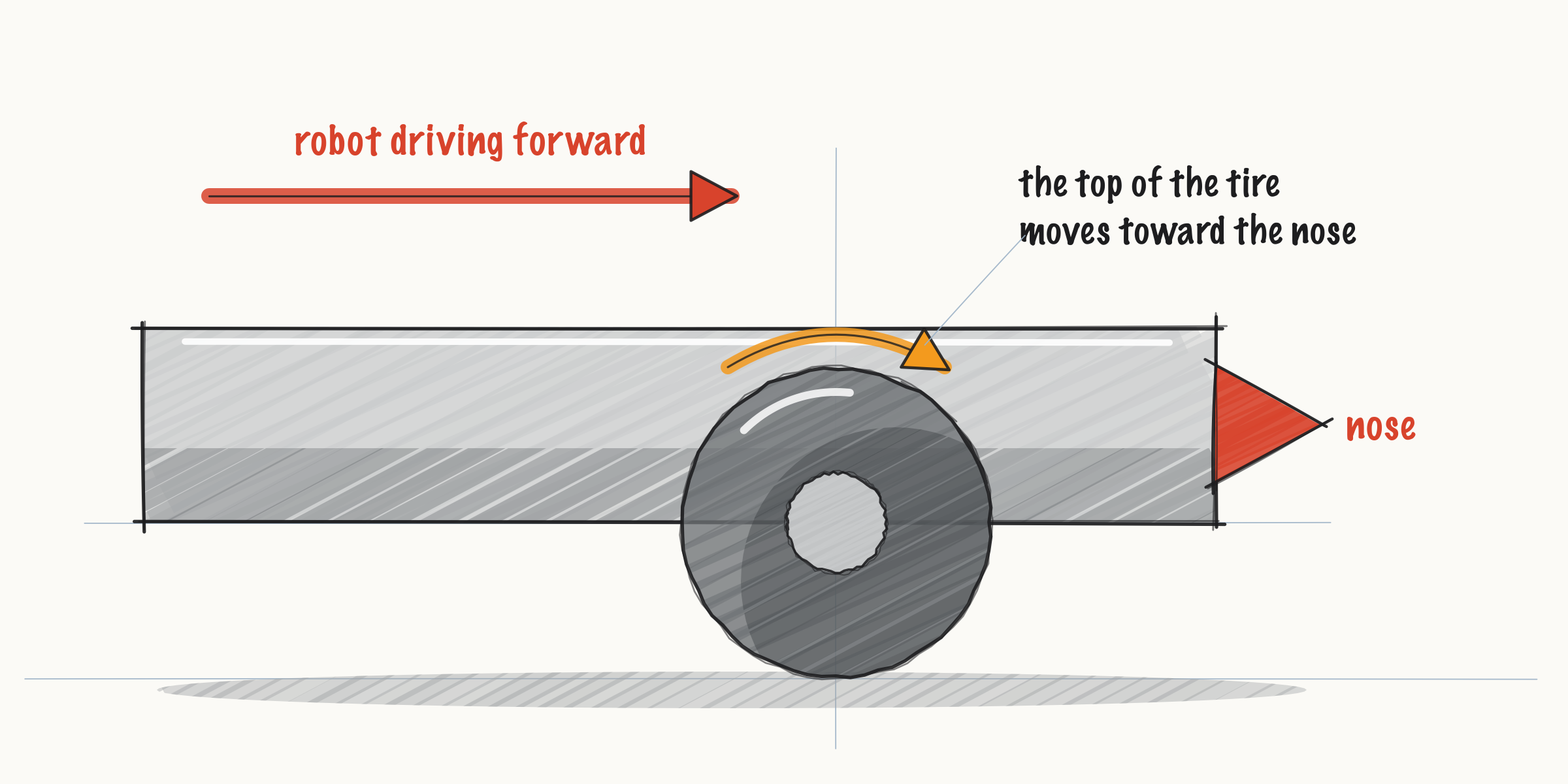
speed/leftgoes above 0.0.Both left wheels turn, with the top of each tire moving toward FRONT.
Let go, and do the same with the right stick and the right wheels.
Write down any wheel that turns the other way, or that turns for the other side’s stick.
L050S070: set each wheel right
Which robot. Open Constants, in the pedro folder. Near the top, thisRobot names the
robot, such as Robot.BOT_37523. If it names a different robot from this one, change it to this
one.
Turns backward. A wheel that turns backward needs its direction swapped in that robot’s own
file in the pedro folder, such as Bot37523. Find its line, such as
c.frontLeftDirection.set(DcMotorSimple.Direction.REVERSE);, and swap FORWARD for REVERSE, or
REVERSE for FORWARD.
Turns for the other stick. A wheel that turns for the other side’s stick is plugged into a port the Robot Configuration gives a different name. Ask a mentor to check the names on the Driver Station.
Send. Send the code again, as in L050S050, and repeat L050S060.
Check.
All four wheels pass L050S060.
L050S080: drive it on the floor
Drive. Press STOP. Lift the robot off the blocks and put it on the floor, with room in front of it. Press INIT, then PLAY.
Check.
Push both sticks gently forward, and the robot drives forward!
Pull both back, and it comes back.
Push one forward and pull the other back, and it spins in place.
Live on the robot is for practice. An OpMode in lessons or mytry turns on the robot’s
NetworkTables server at INIT, which is what AdvantageScope connects to. FTC rule R704 forbids
third-party telemetry over Wi-Fi at competitions, so a competition OpMode lives in another folder,
where it stays off.
On a Mac, the Settings… window is titled Preferences.
If it didn’t, and the robot creeps with both sticks let go, the sticks do not read exactly 0.0. L060 fixes that.
What you just did. Which way a motor turns is set by how it is bolted on and wired, not by the
code. setDirection tells each motor which way it is mounted, so from then on a positive power
turns every wheel forward. The directions live in one place, the robot’s own file, which
thisRobot in Constants.java picks. The code reads them from there, and so will the drivetrains
in later lessons and AutoTune.
Where next. L060 stops the creep, and makes a gently pushed stick mean gently.